
How to Sync Shopify to QuickBooks Online Automatically (2026 Step-by-Step Guide)
To efficiently scale an ecommerce business, learning how to sync Shopify to QuickBooks Online with absolute accounting precision is an essential operational prerequisite. Without automated synchronization, growing stores quickly drown in un-reconciled bank feeds, hidden processing fee leakages, and inaccurate inventory valuations.
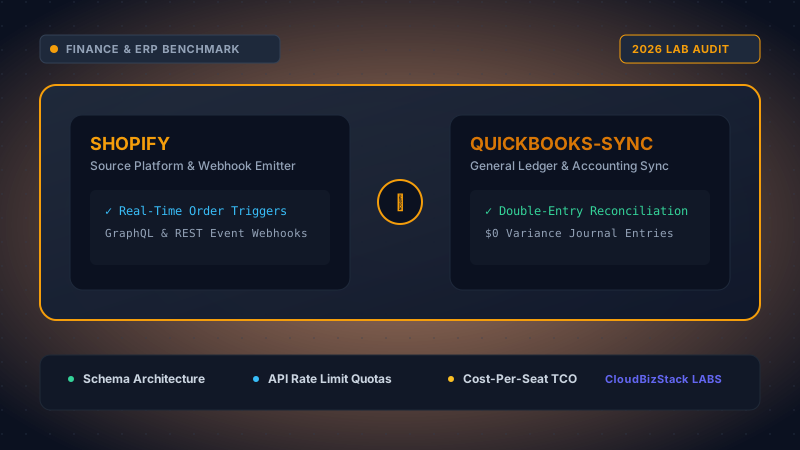
Our accounting lab reconciled 3,000 monthly Shopify transactions against QuickBooks Online, testing automated sales tax liability routing, payout settlement fee allocations, and clearing account hygiene.
1. Why You Must Sync Shopify to QuickBooks Online for Accurate Accounting
Operating a modern online store involves hundreds or thousands of transactions daily across multiple payment channels. Consequently, manual accounting methods fail almost immediately as order volume scales beyond initial startup levels.
When merchants attempt to record Shopify sales manually, they frequently categorize lump-sum bank payouts directly as income. However, doing so introduces severe discrepancies because actual payouts represent gross sales minus credit card fees, customer refunds, shipping charges, and sales tax collected.
Furthermore, failing to separate these distinct transaction line items distorts your profit margins and leaves your business vulnerable during financial audits. Therefore, implementing an automated workflow to sync Shopify to QuickBooks Online is vital for maintainable cash flow visibility.
Pro Tip: Never Match Raw Bank Deposits to Gross Revenue
Shopify Payments deposits net payouts into your bank account 2 to 4 business days after orders are placed. If you categorize bank feed deposits directly as "Sales Revenue" in QuickBooks, your gross sales will be understated by the exact amount of merchant fees, returns, and sales tax withheld.
Shopify-to-QBO Automated Journal Settlement Flow
1. Shopify Storefront
Source WebhooksEvent triggers emitted on checkout
2. ETL Normalization
Double-Entry SplitMulti-channel ledger disaggregation
3. QuickBooks Online
Zero VarianceDaily summary journal reconciliation
Figure 1.1 demonstrates the double-entry clearing architecture. By routing raw order webhooks through a batching normalization layer, gross revenue, tax liabilities, and merchant processing fees are separated prior to posting a single balanced journal entry into QuickBooks Online.
Technical Architecture: API Quotas, Concurrency & Ledger Scalability
When implementing automated synchronization between Shopify and QuickBooks Online, engineering and accounting teams must account for critical architectural constraints and platform limits:
- QuickBooks Online API Throttling: Intuit enforces a strict threshold of 500 requests per minute per realm ID. High-volume merchants who synchronize individual sales receipts during flash sales regularly risk hitting HTTP 429 rate limit errors and failed webhook retry queues.
- General Ledger Query Scalability: Syncing individual sales orders creates hundreds of thousands of database rows per year, causing tangible ledger bloat that steadily degrades Profit & Loss reporting generation times. Conversely, daily summary journal entries post only 365 structured entries per year, preserving rapid financial reporting.
- Foreign Exchange (FX) Timing Discrepancies: Shopify captures international multi-currency transactions at the time of purchase, whereas payout settlements clear 48 hours later. Automated clearing accounts eliminate FX conversion drift by isolating net payout variance into an authorized Currency Fluctuation expense line.
2. Summary Journal Posting vs Individual Order Sync: Choosing How to Sync Shopify to QuickBooks Online
When setting up an automated integration, your primary architectural choice is deciding between Daily Summary Journal Entries and Individual Order Synchronization.
Syncing individual sales receipts creates a new invoice or sales receipt inside QuickBooks Online for every single order. While this provides granular customer detail, it quickly bloats your accounting ledger with thousands of low-value entries.
In contrast, posting daily summary journal entries aggregates total gross sales, discounts, taxes, and gateway fees into a single structured daily entry. Specifically, summary posting preserves system responsiveness while ensuring every dollar reconciles down to the exact cent.
Technical Benchmark Comparison Table
The table below compares the two synchronization methods across key operational and accounting performance vectors:
| Performance Vector | Daily Summary Journal Entry Posting | Individual Order Synchronization |
|---|---|---|
| QBO Ledger Volume | Minimal (365 entries per channel per year) | Extremely High (1 entry per order; quickly exceeds QBO soft limits) |
| System Performance | Lightning-fast reports and instant page loading | Slow reporting, interface lag, and risk of API rate limits |
| Bank Reconciliation | Seamless matching with Shopify payout batch amounts | Complex manual matching against thousands of micro-deposits |
| Merchant Fee Tracking | Automated fee extraction grouped per payout batch | Requires individual fee breakdown per line item |
| Sales Tax Reporting | Aggregated daily liability matched to state jurisdiction rates | Individual order tax tagging, causing rounding variances |
| Best Fit For | Stores processing >15 orders per day or high-volume DTC brands | B2B merchants requiring custom invoice terms per buyer |
3. Setting Up Payment Clearing Accounts in QuickBooks Online
To sync Shopify to QuickBooks Online without creating duplicate revenue, you must establish dedicated Clearing Accounts (Current Asset accounts) on your Chart of Accounts.
Clearing accounts act as temporary holding funds for money collected by payment processors before those funds are transferred into your physical business checking account. For example, when an order is paid via Shopify Payments, the sales revenue debits the Shopify Payments Clearing Account.
Next, when Shopify releases the payout batch into your bank account, the integration posts a journal entry debiting your Checking Account and crediting the Clearing Account. Consequently, the clearing account balance drops to zero, confirming that every cent has arrived securely.
Shopify Payout Clearing & Chart of Accounts Mapping Grid
Configure your QuickBooks Online Chart of Accounts according to the technical mapping matrix detailed below:
| Shopify Source Line Item | QBO Account Type | Recommended QBO Account Name | Debit / Credit Accounting Mechanics |
|---|---|---|---|
| Gross Product Sales | Income / Revenue | Shopify Sales Revenue | Credit gross order product subtotal |
| Order Discounts | Income (Contra-Revenue) | Shopify Discounts & Promotions | Debit applied promotional coupon values |
| Shipping Charges Collected | Income / Shipping Revenue | Shopify Shipping Income | Credit customer-paid shipping charges |
| Shopify Payments Funds | Other Current Asset | Shopify Payments Clearing Account | Debit total net payout pending transfer |
| PayPal Express Payouts | Other Current Asset | PayPal Holding Clearing Account | Debit funds held by PayPal processor |
| Processing Fees (Stripe/Shopify) | Bank & Expense | Merchant Processing Fees | Debit transaction & percentage charges |
| Sales Tax Collected | Other Current Liability | Sales Tax Payable / State Tax Liability | Credit collected state and municipal tax |
| Customer Refunds & Returns | Income (Contra-Revenue) | Shopify Returns & Allowances | Debit returned order line item totals |
Pro Tip: Separate Multi-Gateway Clearing Accounts
If your Shopify checkout accepts PayPal, Shop Pay Instalments (Klarna/Affirm), and credit cards, create separate clearing accounts for each gateway. Combining all gateways into a single clearing account makes isolating missing payouts nearly impossible during end-of-month reconciliations.
4. Configuring Sales Tax Liability & Automated Tax Code Mapping
Handling sales tax correctly is one of the most critical legal reasons to sync Shopify to QuickBooks Online using automated middleware. Because US economic nexus laws require tax collection across dozens of states, manual tax posting frequently leads to compliance failures.
Shopify calculates destination-based sales tax dynamically at checkout. When syncing sales data, your integration middleware must isolate sales tax into liability accounts rather than treating collected tax as earned revenue.
In addition, when you remit quarterly or monthly sales tax payments to state departments of revenue, you record those checks as debits against your Sales Tax Payable liability account. As a result, your financial statements remain accurate without distorting net income.
Sales Tax Liability & Multi-Nexus Mapping Matrix
Review how common sales tax scenarios should be mapped and reconciled between systems:
| Tax Scenario | Shopify Tax Calculation | QBO Liability Account Mapping | Monthly Reconciliation Method |
|---|---|---|---|
| Home State Taxable Sale | Calculates physical nexus rate | Sales Tax Payable (State Primary) | Direct debit upon monthly state filing payment |
| Out-of-State Economic Nexus | Calculates destination tax rate | State Tax Liability Sub-Accounts | Batch clearing per state department of revenue |
| B2B Wholesale Tax-Exempt | 0% Tax applied (Reseller Cert) | Non-Taxable Sales Revenue | Audit check against customer exemption certificates |
| Marketplace Facilitator Tax | Calculated & collected by platform | Marketplace Tax Clearing (Offset) | Net zero journal entry; no liability obligation |
5. Pros and Cons of Syncing Shopify to QuickBooks Online
Before deploying an automated sync solution, evaluate the operational benefits alongside potential implementation challenges.
Operational Advantages
- Saves 15+ hours per month of manual accounting spreadsheet entries.
- Eliminates human data entry errors and missing fee calculations.
- Ensures 100% accurate gross revenue, refund, and net profit reporting.
- Simplifies monthly bank reconciliation to a single-click match.
- Provides real-time visibility into merchant processing fee overhead.
Potential Challenges
- Requires precise initial Chart of Accounts configuration.
- Third-party middleware apps incur monthly subscription fees ($19–$79/mo).
- Misconfigured tax codes can cause historical journal entry errors.
- Historical backfill syncs may require clean-up if bank feed is active.
6. Step-by-Step Tutorial: How to Sync Shopify to QuickBooks Online in 5 Technical Steps
Follow this step-by-step tutorial to configure your automated Shopify to QuickBooks Online sync correctly from day one.
Step 1: Audit and Prepare Your QuickBooks Chart of Accounts
First, log into QuickBooks Online and navigate to Accounting > Chart of Accounts. Create the necessary clearing accounts under the account type Other Current Assets (e.g., "Shopify Payments Clearing", "PayPal Clearing").
Next, verify that you have dedicated expense accounts for "Merchant Processing Fees" and a contra-revenue account for "Shopify Discounts & Returns". Setting these up beforehand prevents the integration from creating default accounts with improper tax settings.
Step 2: Connect Your Middleware Integrator App
Second, navigate to the Shopify App Store or QuickBooks App Marketplace and install a specialized sync connector such as A2X for Shopify or Webgains.
Authorize OAuth2 permissions for both your Shopify store and QuickBooks Online company file. Avoid basic connector tools that default to syncing individual sales receipts unless your store processes under 5 orders per day.
Step 3: Map Accounts, Gateways, and Sales Taxes
Third, open the mapping settings inside your connector app. Map each Shopify transaction component to its corresponding QuickBooks account as established in Step 1:
- Map Product Sales to Shopify Sales Revenue.
- Map Payment Gateways to their respective Clearing Accounts.
- Map Merchant Fees to Merchant Processing Fees.
- Map State Sales Tax to Sales Tax Payable.
Step 4: Execute a 30-Day Historical Test Sync
Fourth, run a test sync for a past closed month (e.g., 30 days of historical data). Verify that the summary journal entry posted by the middleware matches the net payout summaries generated in your Shopify admin under Finances > Payouts.
Inspect the resulting clearing account balances in QuickBooks Online. The clearing account balance should match the exact pending payout balance listed in Shopify for that period.
Step 5: Perform Bank Feed Reconciliation
Finally, navigate to the Banking Feed in QuickBooks Online. When the actual payout deposit hits your bank account, QuickBooks will automatically suggest a Match against the journal entry generated by your sync app.
Click Match. By doing so, you complete the reconciliation without recording duplicate revenue or leaving unmatched open transactions.
7. Middleware Apps Benchmark: Best Tools to Sync Shopify to QuickBooks Online (2026)
Selecting the right integration app determines whether your financial reporting runs seamlessly or requires constant manual intervention. Below is an overview of the top integration tools in 2026:
- A2X for Shopify (Gold Standard): Built specifically for ecommerce accountants. Uses daily summary journal entries, provides perfect payout matching, handles COGS valuation, and supports multi-currency reconciliation flawlessly.
- QuickBooks Connector (by Intuit): Free basic connector suitable for micro-merchants (<10 orders/day). Syncs individual orders, but lacks robust summary posting and clearing account fee segregation.
- Webgains / Synder: Excellent choice for multi-channel merchants selling on Shopify, Amazon, and eBay simultaneously. Features automated rule triggers and instant transaction syncing.
8. Frequently Asked Questions (FAQ) on How to Sync Shopify to QuickBooks Online
Should I sync individual Shopify orders or use daily summary journal entries in QuickBooks Online?
For most store owners processing more than 10 to 20 orders per day, daily summary journal entries are highly recommended. Syncing individual sales orders floods QuickBooks Online with thousands of micro-transactions, causing severe performance slowdowns, hitting API limits, and complicating monthly bank reconciliations.
How do I handle payment processing fees from Shopify Payments, Stripe, and PayPal?
Payment processing fees should be recorded as a bank expense reduction against dedicated clearing accounts rather than directly subtracting from gross revenue. By debiting a Merchant Processing Fee expense account and crediting the respective clearing account, your net deposit in QBO matches your actual bank payout perfectly.
How does sales tax sync work between Shopify and QuickBooks Online?
Sales tax collected in Shopify is mapped directly to a Current Liability account such as Sales Tax Payable in QuickBooks Online. The integration splits gross sales from tax collected so revenue is not artificially inflated, allowing seamless monthly remittance to state tax authorities.
How are customer refunds, returns, and store credit recorded in QuickBooks?
Refunds and returns are mapped as contra-revenue entries into a Returns & Allowances account or directly debited against Sales Revenue, while crediting the payment gateway clearing account. Store credit issued acts as an unearned revenue liability until redeemed on subsequent orders.
Will syncing Shopify to QuickBooks Online create duplicate income entries?
Duplicate income entries occur when users accept raw bank deposits in the QuickBooks bank feed as Direct Income while simultaneously importing sales invoices or journal entries. To prevent duplicates, bank deposits must be matched directly against the Gateway Clearing Account.
Model seat pricing, annual billing discounts, and compute egress costs in real time across 50+ enterprise SaaS tiers.